
Update: Delete a Service in PowerShell or Command Prompt, after disabling
Open the Command Prompt as Admin.
Type in sc delete wuauserv
There should be a short pause, then a flashing cursor. If you get an error, you made a typo.
How to disable automatic updates with Settings
- Open Settings.
- Click on Update & Security.
- Click on Windows Update.
- Click the Advanced options button.Source: Windows Central
- Under the “Pause updates” section, use the drop-down menu and select how long to disable updates.Source: Windows Central


How to disable automatic updates with Group Policy (Win10 Pro)
- Open Start.
- Search for gpedit.msc and click the top result to launch the Local Group Policy Editor.
- Navigate to the following path:
Computer Configuration > Administrative Templates > Windows Components > Windows Update - Double-click the Configure Automatic Updates policy on the right side.Source: Windows Central
- Check the Disabled option to turn off automatic updates permanently on Windows 10.Source: Windows Central
- Click the Apply button.
- Click the OK button.


How to disable automatic updates with Registry
- Open Start.
- Search for regedit and click the top result to launch the Registry Editor.
- Navigate to the following path:
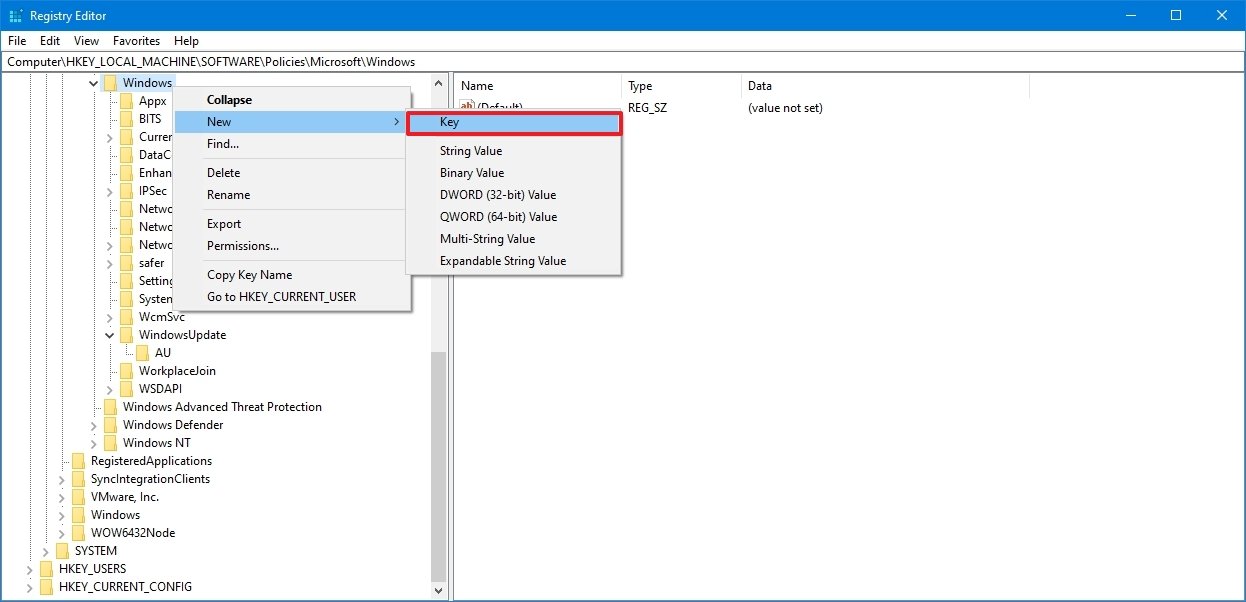
HKEY_LOCAL_MACHINE\SOFTWARE\Policies\Microsoft\Windows - Right-click the Windows (folder) key, select the New submenu, and then choose the Key option.Source: Windows Central
- Name the new key WindowsUpdate and press Enter.
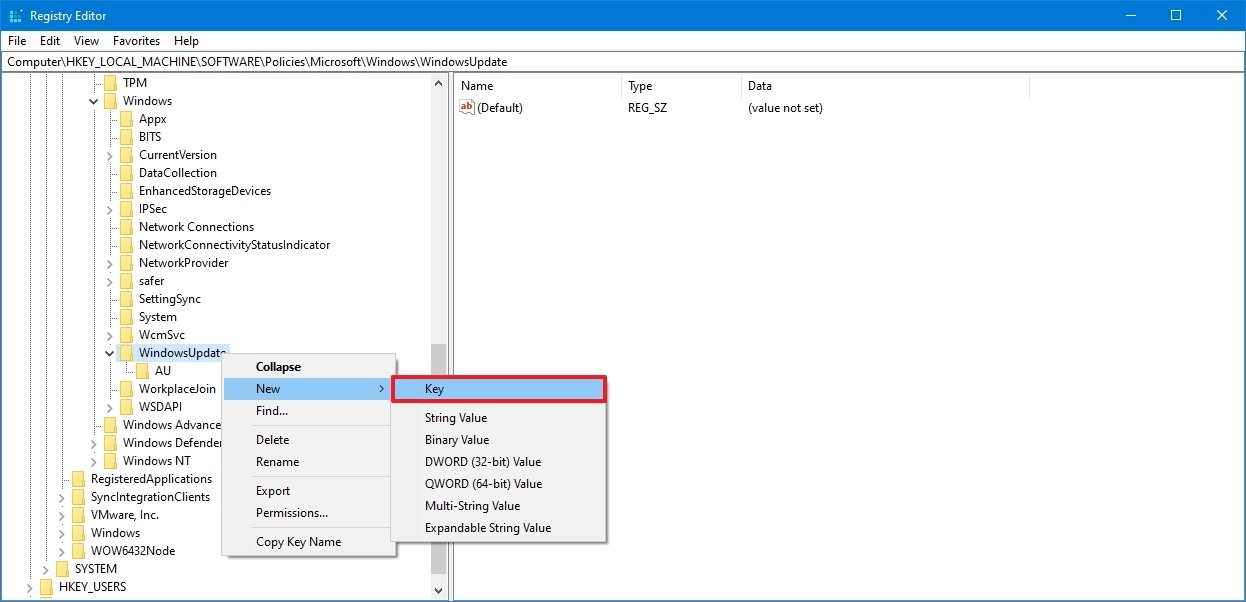
- Right-click the newly created key, select the New submenu, and choose the Key option.Source: Windows Central
- Name the new key AU and press Enter.
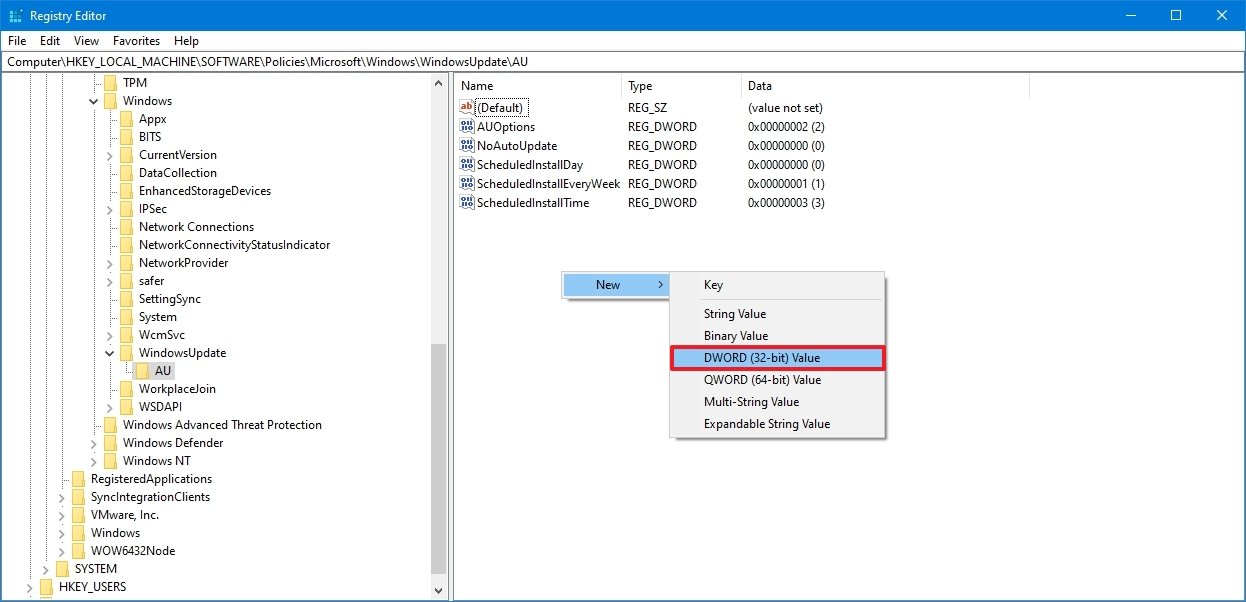
- Right-click the AU key, select the New submenu, and choose the DWORD (32-bit) Value option.Source: Windows Central
- Name the new key NoAutoUpdate and press Enter.
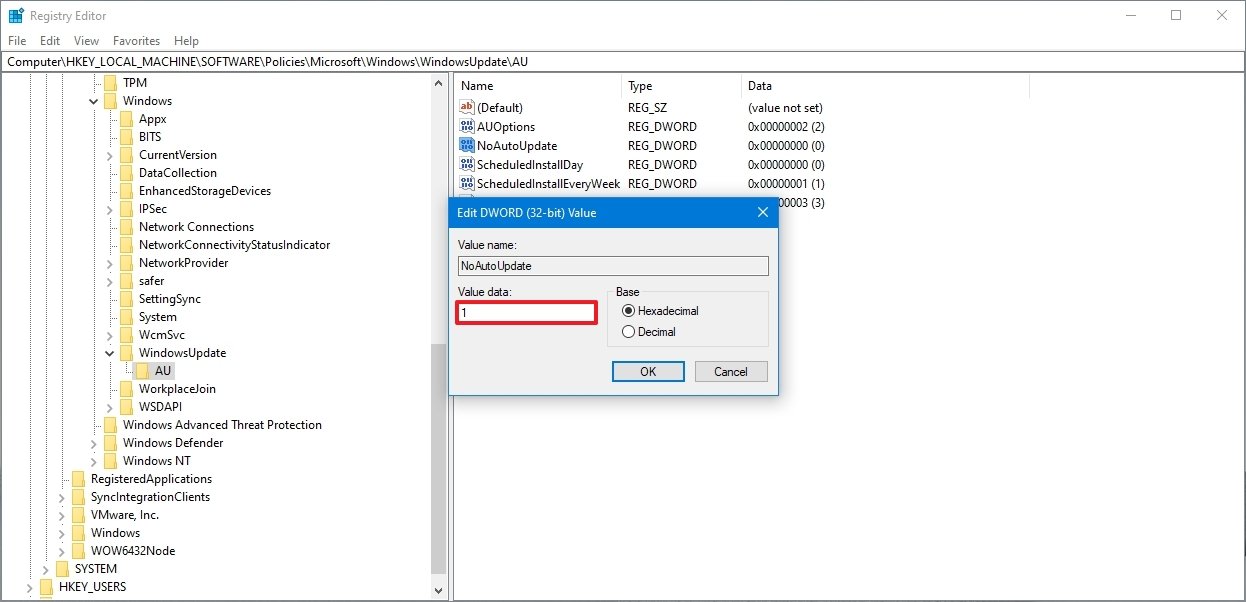
- Double-click the newly created key and change its value from 0 to 1.Source: Windows Central
- Click the OK button.
- Restart your computer.
Source: https://www.windowscentral.com/how-stop-updates-installing-automatically-windows-10